
Well it's simple, really, and the entire IT world is guilty of shitting billions of metric tons of what is factually pompous academic garbage wording, bordering on spam, in place of propper user manual
They call that the documentation
99% of the time it succeeds at turning something simple into something barely understandable by the masses
They can't explain shit without losing the reader with technical crap details
...
In short.bash_aliases is a file where you store pre typed terminal/console commands, that you can then call with a keyword instead of typing them entirely, hence, the alias part in .bash_aliases
Ok, here's how it works (this is for debian/ubuntu, and linux in general):
1) You open your text editor (something simple like gedit or notepad like)
2) You create a new file with it (save as) and you save it as ".bash_aliases", without quotes, in your home folder
The fact that its name starts with "." makes it invisible to "you". To see it, open your home folder and press control+h to toggle visibility of invisible files on or off
3) Return to your text editor, and in your newly created file (called .bash_aliases), you paste this
alias www='chromium --incognito zerohedge.com & exit'
Now, launch a terminal (control+alt+t) and type "www", without quotes
It's going to launch chromium browser in incognito mode and go straight to zerohedge.com, every time you just type "www" in your terminal and hit enter
You can of course add more aliases, like this:
alias www='chromium --incognito zerohedge.com & exit'
alias als='gedit ~/.bash_aliases & exit'
alias x='cmatrix'
But every time you ake a change to your .bash_aliases file, you NEED to reload your terminal, by relaunching it, because everytime a terminal is launched the content of the .bash_aliases file is loaded with it... So if you changed it... You need to reload it, logic
Technical details:
the "~" character in'gedit ~/.bash_aliases & exit' symbolize your home folder. You could write it like that 'gedit /home/user1/.bash_aliases & exit', it's the same thing. Except you don't need to retype /home/user1/. "user1" being the home folder name, replace with yours, of course...
And the "& exit" means quit the terminal right after the launch of the program in your command
If you use && instead of &, it's going to wait until you quit the said program, before closing the terminal
...
But really it's very simple and very handy lol
When you do it
When you explain it, it gets that compicated, for a shitty text file with aliases in it...
...
And next thing I know you tell me you're on windows
Thank you. That is going to reduce my learning curve on this by a lot.
The bash_aliases thing shoudl be the first thing told to beginners in linux, because it just gives a lot of sense to the CLI
there are 5 commands to know
...
The cd command
This is used to navigate from a folder to another
"cd" will go straight to your home folder
"cd /" puts you at the root/first level of your hard drive
"cd /home/user1" puts you in the user1 folder, the home folder in this example
Once there (or anywhere else), if you type "cd .." you go back to the previous folder, "home" in the example above example
...
The ls command
This is used to list things
Typing "ls" in any directory/folder will list its visible content
Typing "ls -a" will list visible and invisible content (stuffs starting with a dot are "invisible")
...
The rm command
This is used to delete things
Type "rm test.wav" will delete the test.wav file located in the folder you are in
"rm *.wav" will delete all .wav files, more here https://linuxize.com/post/how-to-remove-files-and-directories-using-linux-command-line/
if you want to totally destroy everything you do a "rm -r /", this is going to delete all files and folders recursively starting at the root of your drive, which spells doom evidently so don't so it
Anyway you need to do it as root for it to work... Now you know why nobody is given the root account
FYI the * character is called a wildcard
...
The cp command
This is used to copy things
"cp /path/to/myFile.wav /path/to/destinationFolder"
That's how you copy a file to another forlder, you can do the same with a foler to another folder
"cp /path/to/*.wav /path/to/destinationFolder" will copy all .wav files to the desired folder https://www.cyberciti.biz/faq/copy-folder-linux-command-line/ more here
...
The mkdir command https://www.computerhope.com/unix/umkdir.htm
Well, it creates a folder, wherever you call it from, or call it to, as in "mkdir /home/user1/Documents/myNewFolder" to create myNewFolder in the Documents folder, or simply "mkdir myNewFolder" to create a "myNewFolder" where you are
...
And then you have your best friend forever, and his name is midnight commander https://upload.wikimedia.org/wikipedia/commons/9/9b/Midnight_Commander_4.7.0.9_on_Ubuntu_11.04.png because you can do all of the above with "click picture and push key"

Just type "mc" to get at it, or "sudo mc" since you'll probably want to delete system files and other "permissioned" stuffs if you use it, it's easy to use and very helpful, especially for beginners
...
The above is pretty much all you need to manage files on a system
Youll have to get familiar with chmod and chown (permissions), and midnight commander is helpful to simplify things about it https://blog.onetwentyseven001.com/midnight-commander-console-based-file-manager-for-linux/index.html
see "File Permissions"
And then, finally, how to mount disks https://www.cyberciti.biz/faq/mount-drive-from-command-line-ubuntu-linux/
And use photorec https://www.tecmint.com/photorec-recover-deleted-lost-files-in-linux/ because one day you'll need it, oh yes you will...
The author in the last link above uses a very basic console based text editor, called "vi"
Well it's absolute horrible garbage for beginners, use "nano" instead (just type nano in your terminal), and read what's at the bottom of your screen
https://www.tecmint.com/wp-content/uploads/2018/10/Edit-Files-in-Nano.png
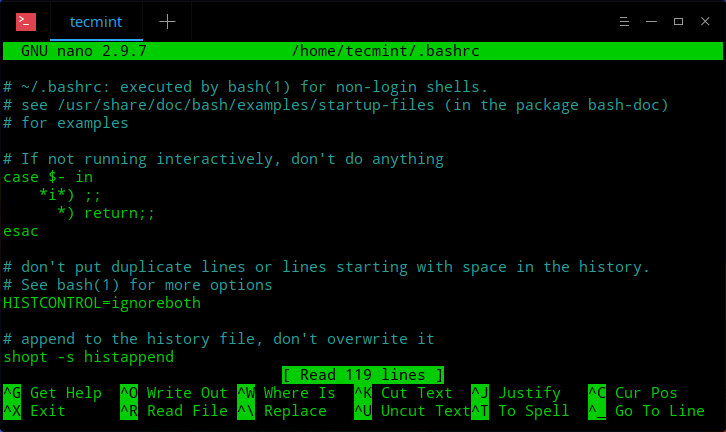
The little triangle before the letter means "control key"... Yeah I know, it's fucked up
(post is archived)